A step-by-step guide to getting started and building a daily routine that takes about five minutes. Set aside fifteen minutes for setup. After that, Apex does most of the planning.
~15 minone-time setup
~5 mina day
~10 minweekly reset
Before you start: Apex runs on iPhone and iPad with iOS 26.2 or later. Button names in the app may differ slightly from this guide as Apex updates, but the flow stays the same.
Part 1 · One time · ~15 minutes
Set up Apex
Do this once at the start of the semester, ideally with all your syllabi and your class schedule nearby. The more Apex knows up front, the better your first week will be.
Download Apex and sign in
Get Apex Student on the App Store. It's free. Open it and choose Sign in with Apple or sign up with email and a password.
Why it matters: your data is backed up to your account, so your plan carries over if you reinstall or switch to a new iPhone or iPad.
Import your class schedule
Take a photo of your class schedule, or a screenshot from your school portal, and give it to Apex. It reads every recurring lecture, lab, and section and adds them to your calendar automatically.
Make sure the whole schedule is in frame and the text is readable.
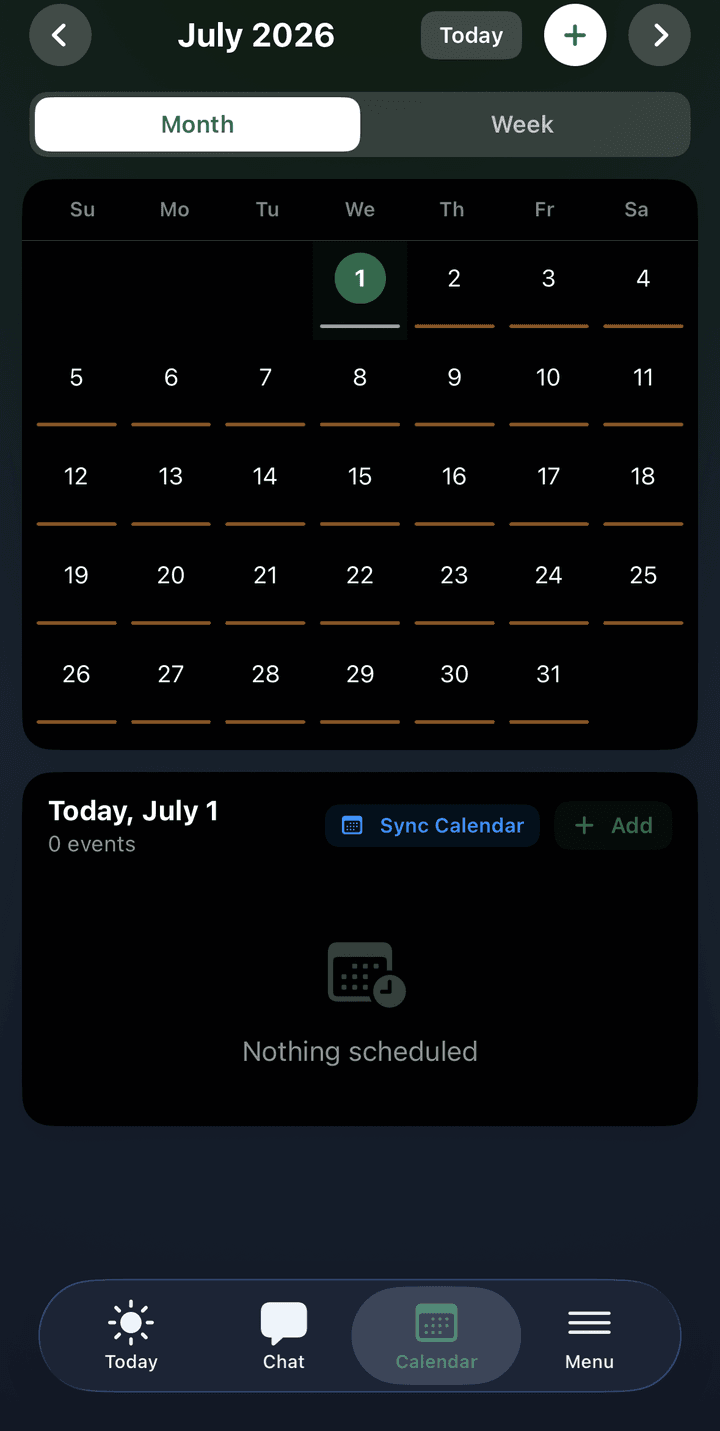
Check the result in the Calendar tab and fix anything that looks off.
Scan a syllabus for each class
Upload each syllabus once, as a PDF or a photo. Apex pulls out every exam, essay, quiz, and deadline, plus your professor's name and office hours, and organizes them by course.
Review what it finds. You can edit or delete anything before it goes into your plan.
Got a syllabus with a "tentative" schedule? Upload it anyway. You can adjust dates when your professor updates them.
Adding a class later in the term? Just scan its syllabus then.
Tip: this is the step that saves you the most time. After this, you shouldn't need to reread a syllabus to find a due date.
Add your work and athletic schedules
Classes are only part of your week. When you first create your account, Apex asks about your regular commitments outside class. Fill these in carefully, so study time never lands on top of a shift or a practice.
Work
Which days and hours you work
Whether your shifts change week to week
Commute time to and from work
Athletics
Practices, lifts, and film sessions
Games, meets, and travel days for away events
When your season starts and ends
Schedule changes weekly? After setup, tell LOLA in the Chat tab whenever you get new shifts or a new game schedule, and your week reshuffles around them.
Sync the calendar you already use
In the Calendar tab, connect your existing calendar. Events you already have stay where they are, and Apex plans study time around them instead of on top of them.
Share your study, sleep, and social habits
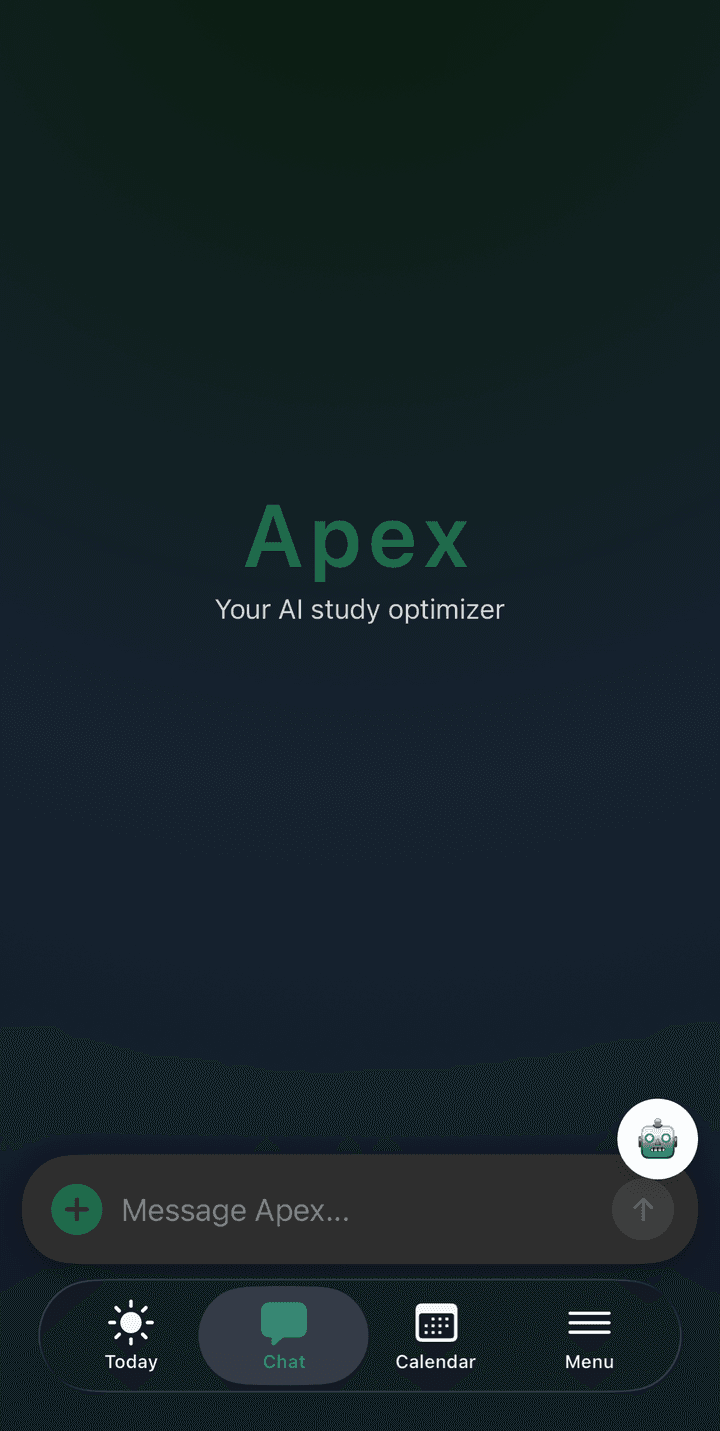
Next, open the Chat tab and tell LOLA, your AI assistant, how you actually live. This is what lets Apex put your hardest work in your best hours, protect your sleep, and keep time for the people you care about. Be honest. The plan only works if it fits the real you.
Study habits
When you focus best, like "I'm useless before 10am"
How long you can focus before you need a break
Whether you start early or work best close to deadlines
Which classes are hardest for you
Sleep
Your usual bedtime and wake-up time
How weekends differ from weekdays
How much sleep you need to feel good
Whether you nap, and when
Social life
Regular plans with friends or family
Clubs, organizations, and volunteering
Time you want protected, like "keep Saturdays free"
Health & goals
Gym days and other routines
Goals for the semester, like "get my GPA above 3.5" or "stop pulling all-nighters"
You don't have to cover everything at once. Add more anytime by messaging LOLA. It remembers what matters, and you can review it in Settings → "What Apex Knows."
Turn on energy check-ins and Apple Health (optional)
Apex can ask for a short energy survey each morning, plus a quick "How are you feeling?" every couple of hours. Your answers feed your body battery and tune the day's focus forecast. You can skip any check-in with one tap.
If you allow it, Apex can also read last night's sleep from Apple Health to pre-fill your body battery. Access is read-only, and your health data never leaves your device.
Set up your courses and grades
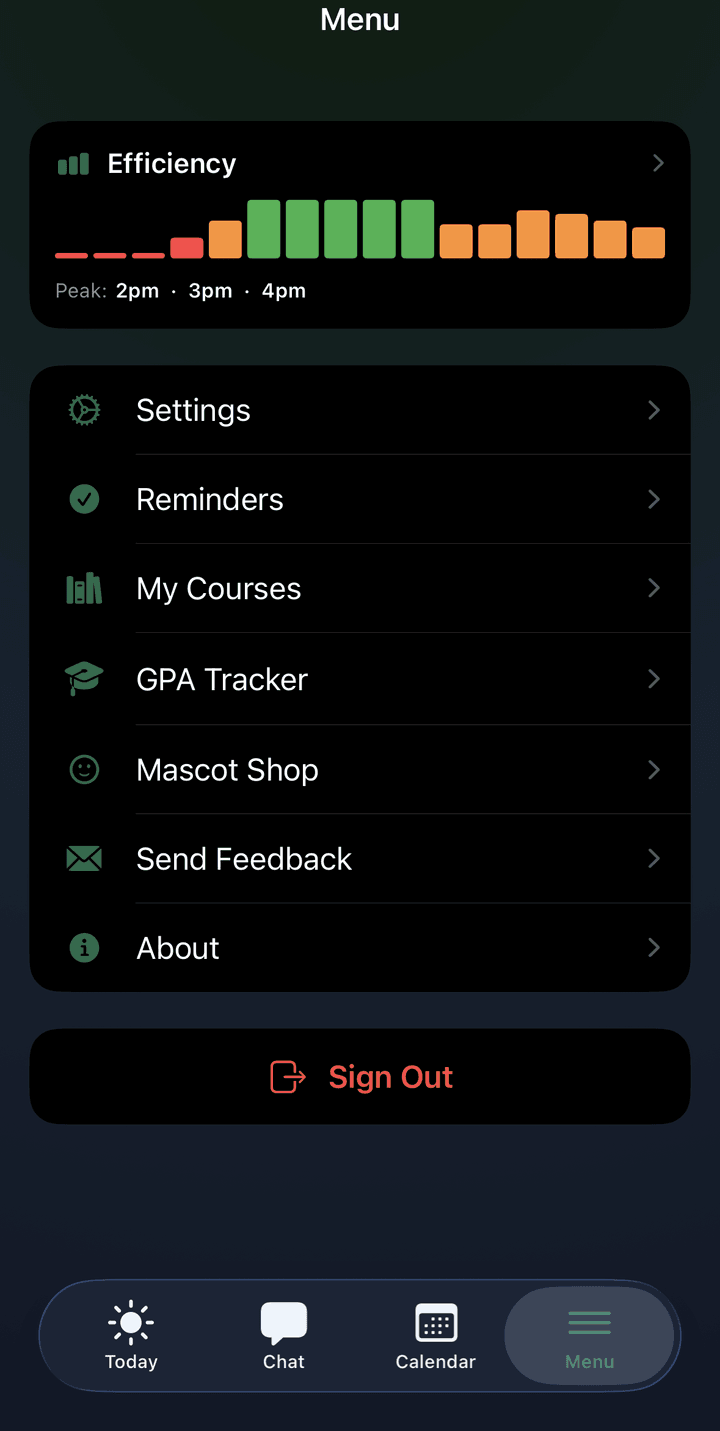
From the Menu tab, open your courses and the GPA tracker. Add each course's grading categories and weights (for example, exams 50%, homework 30%, participation 20%) and its credit hours. Set a priority for each class so Apex knows where your effort matters most.
Review your first week
Go back to the Calendar and look over the week Apex built. Study blocks sit in your strongest focus hours, and big deadlines are already split into smaller steps.
Drag, edit, or delete anything that doesn't fit. Apex proposes, you decide.
Add anything it's missing with + Add, or just tell LOLA.
Don't aim for perfect. Apex learns from how your week actually goes, so the plan gets better on its own over the first couple of weeks.
Part 2 · Every day · ~5 minutes
Your daily routine
Apex works best as a quick check-in a few times a day, not another app you have to manage. Here's the routine we recommend.
Morning · 2 min
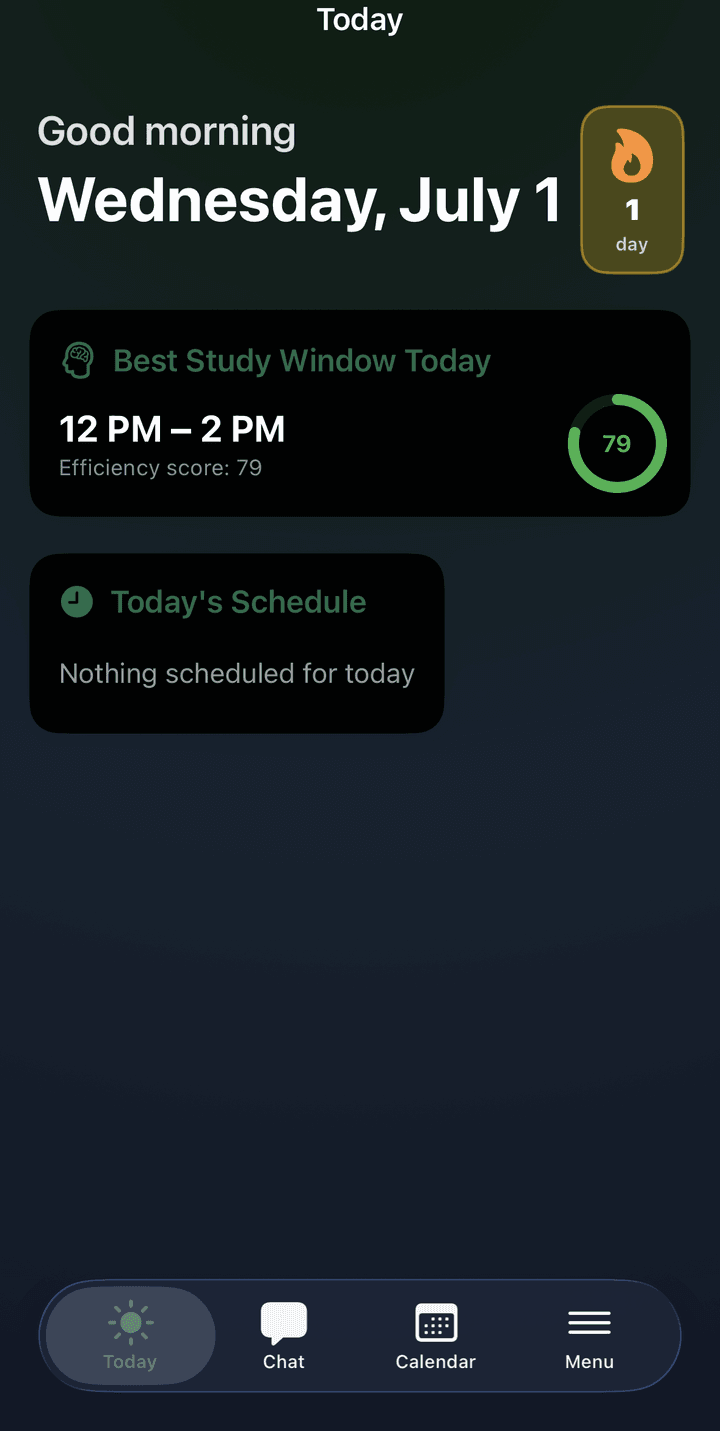
Check your Today screen
Open Apex to the Today tab.
Take the morning energy survey (about 30 seconds).
Look at your best study window and its efficiency score. That's when your hardest work for the day goes.
Scan today's schedule and keep your streak going.
During the day · as needed
Follow the plan, adjust out loud
Start each study block when it comes up and log the session, so Dynamic Studying learns how long your work really takes.
Finished an assignment or just took an exam? Complete the activity debrief. It takes a minute and tracks how well you stuck to the plan and how well the plan worked, so future schedules get more accurate.
Answer or skip the quick "How are you feeling?" check-ins.
When something changes (an exam moves, you pick up a shift, practice runs late), tell LOLA once. Your week reshuffles around it.
Act on reminders when they arrive. They're timed for when you're likely to do something about them.
Evening · 2 min
Close out the day
Open Reminders and clear anything under Today. Glance at This Week.
Got a grade back? Log it in the GPA tracker so your course grades stay current.
Ask LOLA "What does tomorrow look like?" so nothing surprises you in the morning.
The Today tab and study windows are where your day starts.
Part 3 · Once a week · ~10 minutes
The weekly reset
Pick a regular time, like Sunday evening, to look back on the week and set up the next one. Apex does the heavy lifting with its weekly optimization; you just steer.
Look at your Efficiency Map
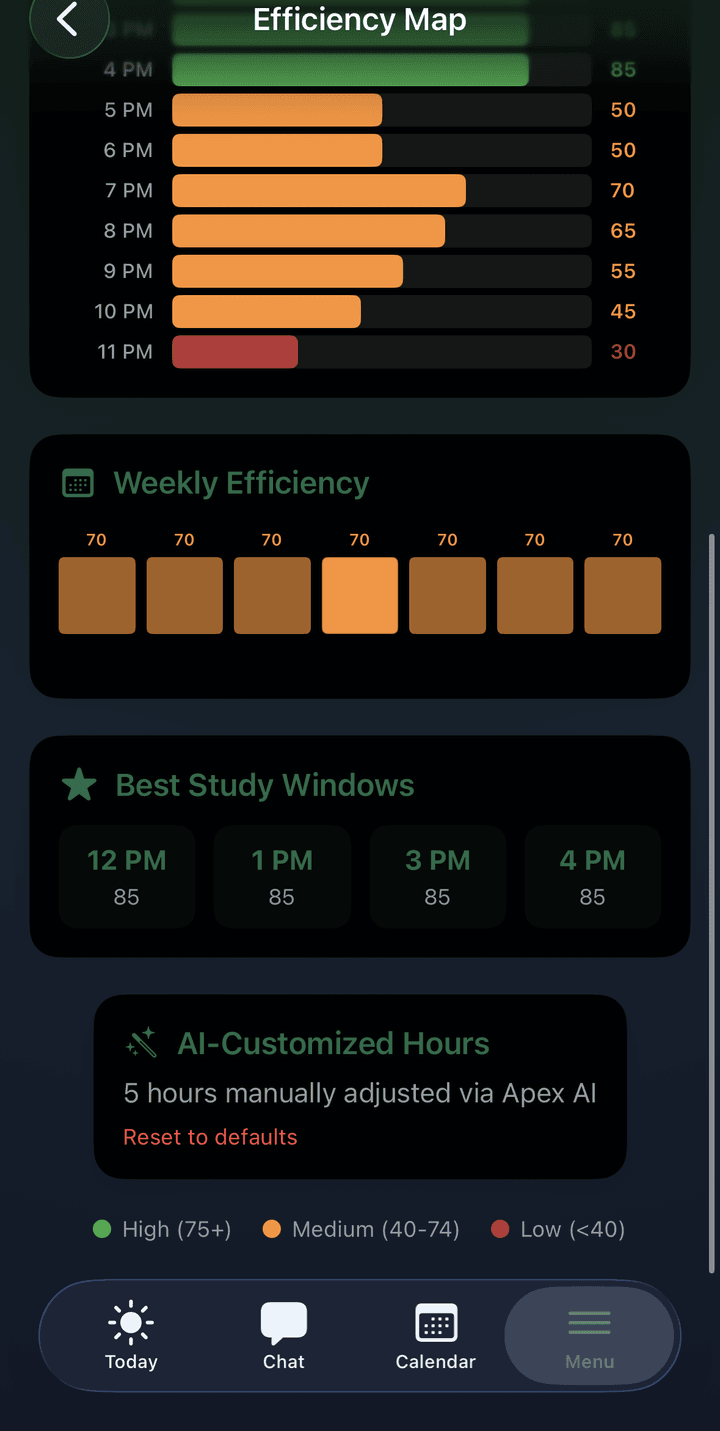
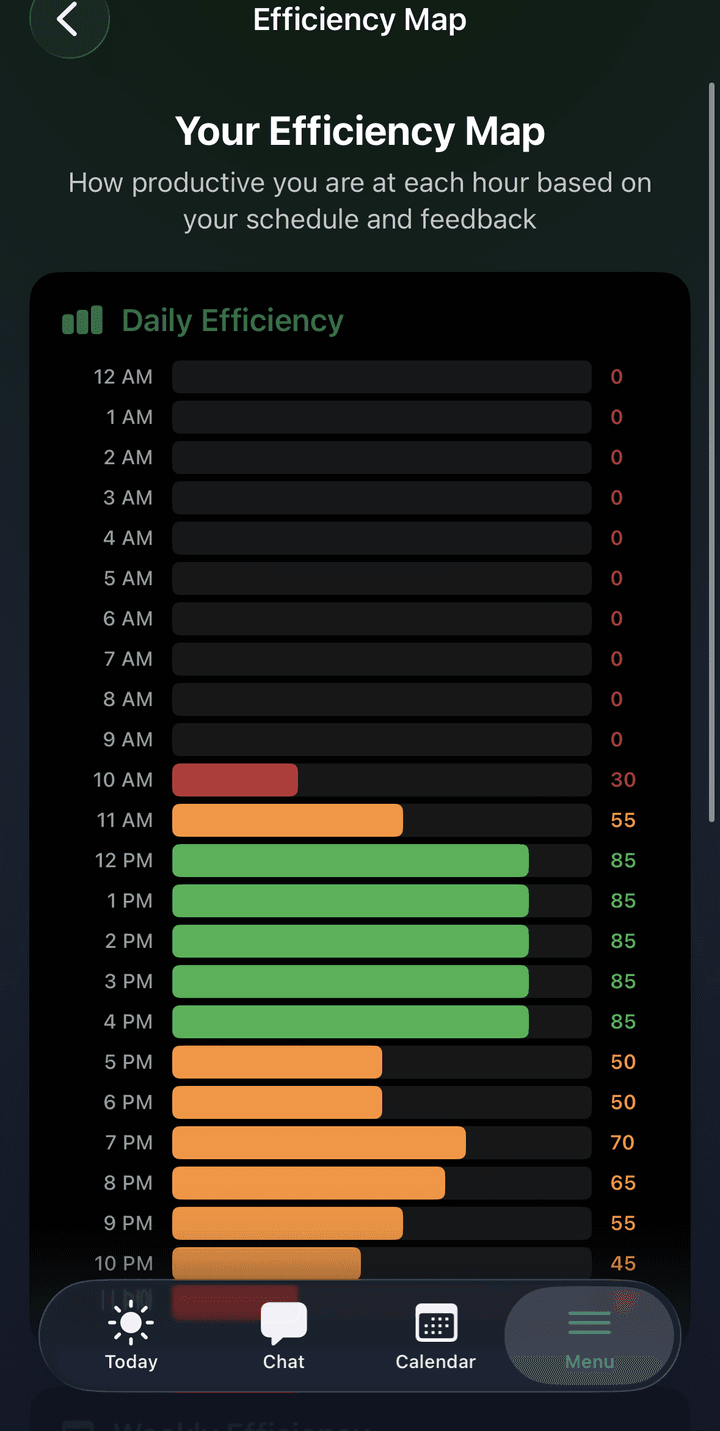
See how productive you were at every hour of every day. Tap a weekday on the efficiency bar to jump straight to it. If you keep slumping at a certain time, tell LOLA, and Apex will stop scheduling hard work there.
Preview next week
Open the week view in the Calendar. Check upcoming exams and big deadlines, and make sure their study steps are spread out. Add new commitments like games, shifts, or plans with friends.
Update anything that changed
Professor moved a due date? Edit it, or upload a revised syllabus. Dropped or added a class? Update your courses so your plan and GPA stay accurate.
Set a goal or habit for the week
Pick one or two small things to track, like three morning runs, in bed by midnight, or finishing problem sets a day early. Short-term goals are easier to keep, and Apex keeps tracking them until they stick.
Part 4
Talking to LOLA
LOLA understands plain language, so you don't need special commands. Here are things students ask every day:
"My chem midterm moved to Friday."
"I picked up a shift Thursday 5 to 9."
"What should I work on right now?"
"I'm behind on my history essay. Help."
"Keep Saturday completely free."
"I only have 45 minutes. What's the best use of it?"
"What does the rest of my week look like?"
"I'm exhausted today. Lighten my schedule."
If you're behind or overbooked, LOLA gives you a concrete plan to catch up, never a lecture. And every suggestion is editable.
Part 5
Privacy & control
See what LOLA remembers
Settings → "What Apex Knows" shows the short summary LOLA keeps about your habits and goals. Clear it anytime.
Turn off Apple Health
iOS Settings → Privacy & Security → Health → Apex.
Skip check-ins
Every energy check-in is optional and can be skipped with one tap.
Delete your account
Settings → Delete Account removes your account and all associated data.
Edit the item directly, or add it yourself. Clear, well-lit photos or the original PDF give the best results. For a schedule printed as a table, try a straight-on photo with the whole table in frame.
My study blocks are at bad times
Tell LOLA when you do and don't focus well, and answer a few energy check-ins. Apex also learns from your Efficiency Map over the first couple of weeks, so timing improves on its own.
Apex thinks my assignments take too long (or not long enough)
Keep logging your study sessions and completing the activity debrief after each assignment and exam. Dynamic Studying adjusts its estimates per class based on how long your work actually takes.
I was offline. Did I lose anything?
No. Study sessions and check-ins save while you're offline and sync automatically when you reconnect.
I got a new phone
Install Apex and sign in with the same Apple ID or email. Your data is backed up to your account.
Still stuck? Check the FAQ or contact support. Include your device, iOS version, and app version.